Self-hosting means running software on a computer you control. You can keep that computer under your desk, put it in a cupboard, or rent it from a hosting company. You control the running installation either way. You choose when to update it, where it stores your data, and who can use it. What you own or may modify still depends on the software licence.
That is work. Servers need updates, databases need backups, and forgotten test applications become security risks.
The work has become manageable, though. A small rented server, a deployment panel such as Coolify, and an hour of concentration can give you a private notes app, website analytics, an automation system, or a customer support desk. You do not need a rack of hardware. You do not need to write software.
Start with one application that would cause mild inconvenience if it broke. Learn how its data moves, back it up, and restore it. Add the important applications after those steps feel boring.
The short version
Most beginners can follow this route:
- Rent a small virtual private server, often called a VPS.
- Choose a supported Ubuntu LTS or Debian image.
- Connect a domain or subdomain to the server.
- Install Coolify or use Docker Compose.
- Deploy a low-risk application such as Memos.
- Confirm that the application stores its data in a persistent volume.
- Send an encrypted backup to a different provider or device.
- Restore that backup into a fresh test installation.
- Add monitoring and write down the recovery steps.
A working login page proves that the application started. A successful restore proves that you can keep it.
Run your first application
This example uses a VPS, Coolify, and Memos. Coolify gives you a browser interface for deployments, domains, certificates, and logs. Memos is a small notes application with a SQLite database and a local folder for uploaded files.
This is a good training project because you can create recognisable test data and check whether it survives a restore. Do not start with the only copy of anything important.
1. Buy or reuse a domain
Use a subdomain for each application rather than buying a new domain:
notes.example.com
stats.example.com
status.example.com
Protect the domain account with two-factor authentication and store its recovery codes away from the server.
2. Create the VPS
Choose a nearby region and Ubuntu 24.04 LTS. Coolify’s current installation requirements call for at least two CPU cores, 2 GB of memory, and 30 GB of free storage. Four gigabytes of memory leaves more room for Coolify, Memos, and another small application.
Add your SSH public key when you create the server. Record the provider, region, server size, IP address, and renewal date.
3. Install Coolify
Follow the official Coolify installation instructions rather than copying an installer from a blog post. Its quick installer currently supports fresh Ubuntu LTS servers, including versions 20.04, 22.04, and 24.04.
The initial setup opens Coolify on port 8000. Visit it immediately and create the administrator account. Anyone who reaches an unclaimed installation first can register that account. Then configure a domain and HTTPS for the panel before adding business applications.
Coolify has broad control over the server. Protect its login with a unique password, use two-factor authentication when available, and keep the provider’s emergency console details somewhere else.
4. Point the subdomain at the server
Open the DNS panel at your domain provider and add an A record:
Type: A
Name: notes
Value: your server IPv4 address
Many DNS changes appear within minutes, but old answers can remain in caches until their time-to-live expires. Check the record from a second network, such as mobile data, if one device still sees the old result.
5. Deploy Memos
Use Coolify’s current Memos service template. Before deploying, confirm that:
- Memos data is attached to persistent storage.
- The application domain is
notes.example.com. - Coolify will request an HTTPS certificate.
- No database or administration port is exposed directly to the internet.
Open Memos, create the administrator account, add two test notes, and upload a small image. Restart the service from Coolify. The notes and image should still be present.
6. Record where the data lives
Memos stores its SQLite database and local assets under /var/opt/memos in the official container. Write down the application name, domain, volume or host path, Memos version, backup destination, and restore procedure.
Coolify’s own backup covers its configuration database, not the data inside application volumes. The Coolify backup documentation makes that distinction explicit. You need a separate application backup for Memos.
7. Back up the database and uploaded files
Follow the current Memos backup and restore instructions. For the default SQLite setup, make a consistent database copy with SQLite’s .backup command or stop Memos before copying the database file. Back up the assets directory and your deployment configuration as well.
Store another copy outside the VPS, preferably under a different provider account or on a device you control. Encrypt it before upload and keep the encryption key somewhere other than the server.
8. Restore into a fresh instance
Create a second Memos installation with temporary storage. Restore the database and assets, start the application, and check:
- Can you sign in?
- Are both test notes present?
- Does the uploaded file open?
- Does the database pass
PRAGMA integrity_check?
Write down the exact steps that worked. A successful backup job proves that files were copied. It does not prove that the application can use them.
What we tested
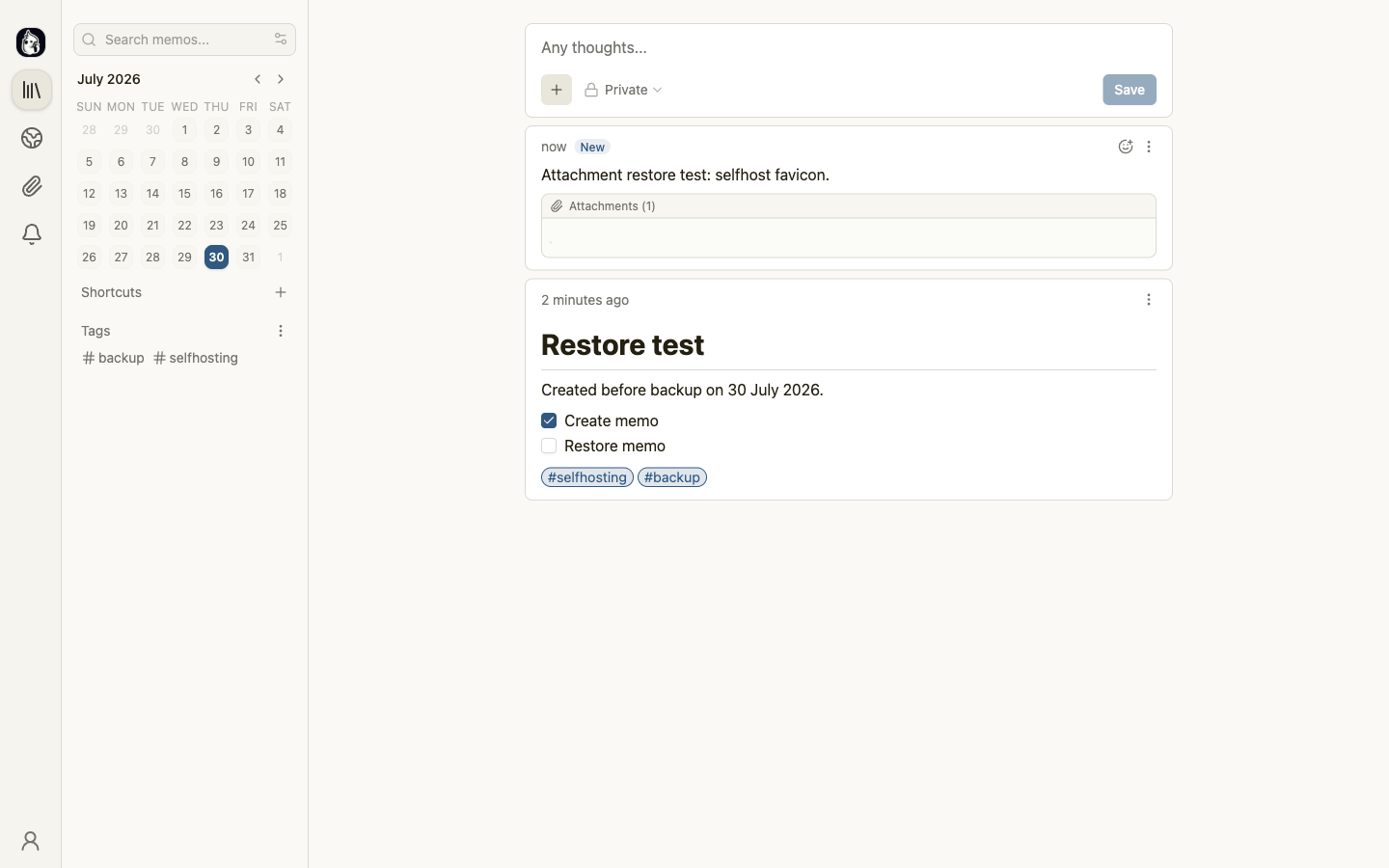
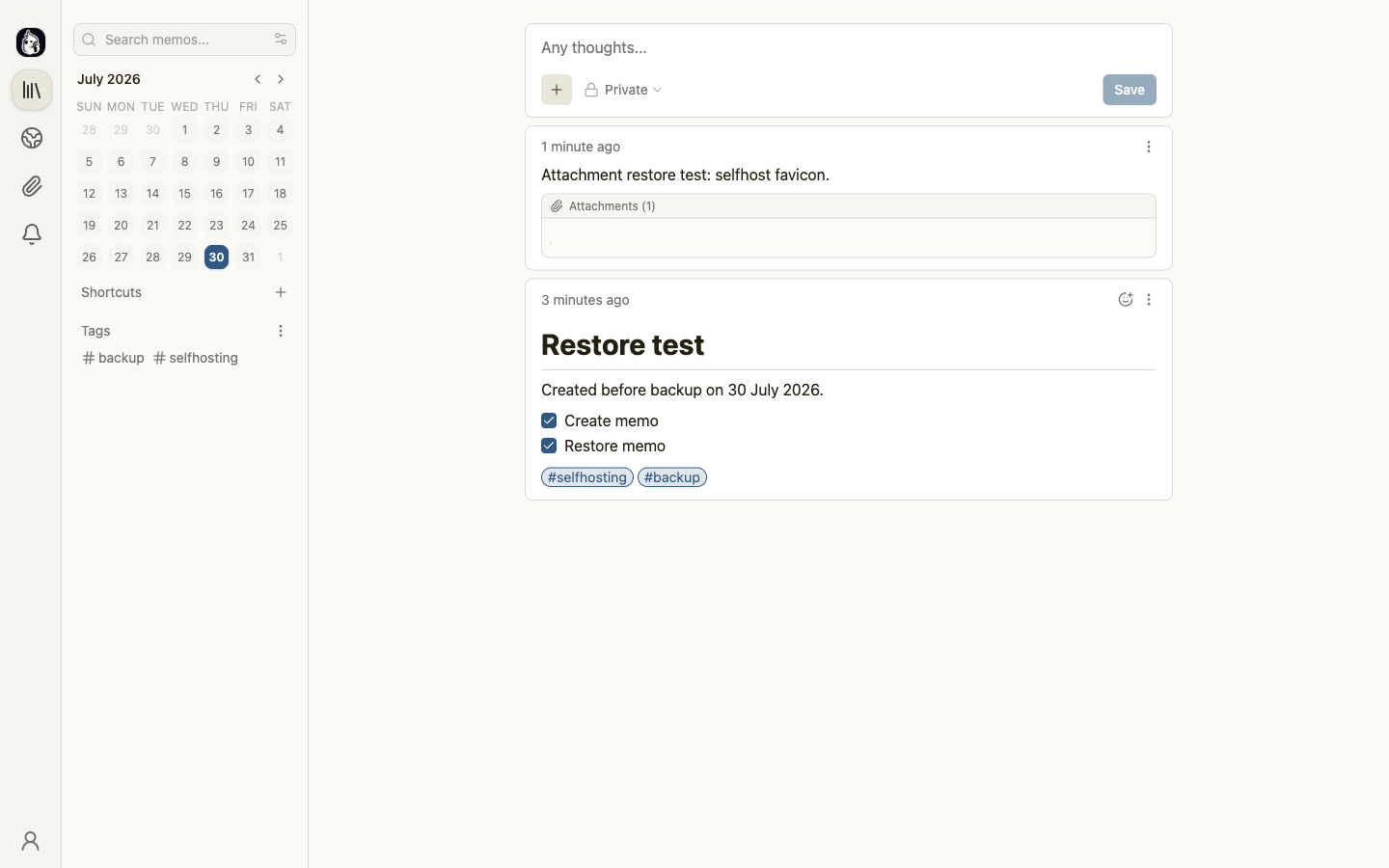
This restore procedure was tested on 30 July 2026 with Memos v0.30.0, its default SQLite database, and the official macOS ARM64 release. The Coolify route above was checked against its current installation and Memos service documentation; it was not deployed to a VPS during this test.
The source instance contained two memos and one uploaded SVG file. We created an online SQLite backup, copied the asset directory, and restored both into a fresh Memos data directory. The restored instance contained both memos and the attachment. SQLite returned ok from PRAGMA integrity_check, and the restored attachment’s SHA-256 checksum matched the original.
Add external monitoring after the restore. A monitor on the same VPS can detect an application failure, but it cannot alert you when that entire server loses power or network access.
Self-hosting in plain English
Four pieces make up a basic self-hosted service:
| Piece | Its job |
|---|---|
| Application | Gives you the feature you want, such as notes, analytics, invoices, or file storage |
| Server | Runs the application and stays connected to the internet or your local network |
| Storage | Holds accounts, settings, uploads, and database records |
| Address | Gives you a domain or local address that opens the application |
Take Umami, a web analytics application. Umami runs on your server. A database stores visitor counts and site settings. A domain such as stats.example.com gives you a clean address. Your browser opens the dashboard.
The same pattern covers most tools in this directory. The installation details change, but the pieces stay familiar.
Self-hosted does not mean hosted at home
A computer in your house gives you direct control over the hardware. It also gives you power cuts, router settings, residential upload speeds, and a machine that someone may unplug while looking for a phone charger.
A VPS gives you a small computer in a data centre. The hosting company owns the hardware. You control the operating system and the applications. For a public website, CRM, analytics dashboard, or automation tool, a VPS gives most beginners the cleanest start.
Open source and self-hosted describe different things
Open source software gives you access to source code under a licence. Self-hosting describes where the application runs.
An open source project may offer both a hosted subscription and a self-hosted edition. Some projects keep team permissions, audit logs, or other features for paid editions. Read the licence and the edition comparison before you move business data. Running the software yourself gives you control over the installation and data flow. It does not automatically transfer copyright, trademarks, or every commercial right to you.
Source code on GitHub does not guarantee a healthy project. Check recent releases, open security reports, documentation, and the number of maintainers. A project with ten thousand stars and no release in two years deserves more caution than a smaller project with steady maintenance.
Decide whether the work pays off
Self-hosting works well when one server can replace several subscriptions or when control over data carries more value than convenience.
It fits these situations:
- You pay for several small SaaS products that a single server could run.
- A hosted plan charges per user and your team keeps growing.
- You need an internal tool with no reason to send data to another company.
- You want to modify the software or connect it to your own systems.
- You can spend time on updates, backups, and occasional repairs.
Keep a managed service when an outage could stop sales, lock you out of key accounts, or damage client work before you have a recovery plan.
Email gives a good example. Installing a mail server takes less time than building a good sender reputation. Gmail and Outlook judge your IP address, DNS records, message patterns, and complaint rate. One mistake can put invoices and password reset messages in spam. Run a private notes app first. Leave business email with a provider until SPF, DKIM, DMARC, reverse DNS, blocklists, and mail queues make sense to you.
Control comes with a pager
No one will call you at midnight about a broken Memos instance. A team of eight may call when your self-hosted file server stops before a client deadline.
Decide who owns each service:
- Who installs updates?
- Who sees outage alerts?
- Who can restore the database?
- Who takes over during a holiday?
- How long can the business work without the application?
A solo founder may accept a few hours of downtime for an internal dashboard. A medical practice or busy online shop needs stricter controls. Self-hosting moves those risk decisions to you.
Pick a first application with low stakes
Your first tool should teach the main parts of self-hosting without holding irreplaceable data.
| Starter tool | Why it works | Main lesson |
|---|---|---|
| Memos | Small application with a clear use | Persistent storage and account setup |
| Umami | Replaces a common website service | Domains, databases, and tracking scripts |
| Uptime Kuma | Gives you an immediate dashboard | Monitoring, notifications, and public status pages |
| FreshRSS | Useful for one person or a small group | Feeds, scheduled jobs, and data export |
Memos makes a strong first project. Add a few notes and a file, then check whether they survive a restart. A failed test costs an afternoon, not the sole copies of family photos.
Avoid these first projects:
- Your primary email server
- Your sole password vault
- Your sole photo archive
- A client billing system
- Public video hosting
- A business database with no export
Vaultwarden has a small hardware footprint and a clean Docker installation. That makes it easy to start and dangerous to misunderstand. A password manager can run well on a small server, but you should deploy it after you know how to encrypt backups and test a restore.
Choose where to run the server
A VPS suits most public applications
Providers such as Hetzner, Linode, DigitalOcean, Vultr, OVH, and Hostinger rent virtual servers by the month. You choose a region, an operating system, and a size. The provider gives you an IP address and a console.
Some provider links in this section are affiliate links. If you open an account through one, SelfHostTools may earn a commission at no extra cost to you.
A comfortable beginner server has:
- Two virtual CPU cores
- Four gigabytes of memory
- At least forty gigabytes of storage
- A supported Linux distribution
- Automated snapshots or an external backup destination
One light application can run with less. Coolify, a database, and several applications need headroom. Saving a small amount on memory loses its charm when the Linux kernel kills your database during a photo import.
Choose a data centre near the people who will use the applications. Check whether the provider charges for outgoing traffic, snapshots, extra IP addresses, and backup storage. The server price on the product page often excludes part of the setup.
A spare computer suits private services
An old laptop can run Memos, FreshRSS, Home Assistant, or a media library. Its built-in battery helps during a short power cut. Wired networking will save you from a surprising number of small problems.
Home hosting brings extra work:
- Your router must send traffic to the right machine.
- Your internet provider may change your public IP address.
- Some providers block incoming connections or place customers behind carrier-grade NAT.
- Your upload speed limits file and video access.
- A power cut takes the service offline.
Private network tools such as NetBird and Headscale with compatible Tailscale clients can give you remote access without opening application ports to the public internet. Use that route for a family dashboard or personal file tool that has no public audience.
A NAS suits storage-heavy work
Synology, QNAP, TrueNAS, and Unraid systems combine storage with application hosting. They suit photos, documents, backups, and media.
Check the processor and memory before you load a NAS with containers. A device that handles file sharing may struggle with face recognition in Immich, video transcoding in Jellyfin, and several databases at once.
A managed platform reduces server work
Some hosts install applications, manage updates, or provide a control panel. This suits an owner who wants more control over application data without becoming the sole Linux administrator. Ask who handles application upgrades, database backups, security patches, and restores. “Managed” sometimes means only a control panel and ticket support.
Read the full hosting guide before you choose a provider.
Learn the handful of terms that keep appearing
You can run the first application without memorising a networking textbook. These terms will appear in hosting panels, setup guides, and error messages.
Domain and DNS
A domain gives the application a readable address. DNS connects a name such as notes.example.com to the server IP. An A record makes that connection for IPv4. Old answers can remain cached until their time-to-live expires.
Port
A port sends traffic to a service on the server. Web traffic uses ports 80 and 443. SSH often uses port 22. Databases use other ports.
Do not expose a database port to the internet because an installation guide shows it in a Compose file. Containers can talk over a private Docker network. Your browser needs access to the web application, not its PostgreSQL server.
Container
A container packages an application with the software it needs. Containers help projects run in a consistent environment across different servers.
Deleting a container should not delete your data. Persistent data belongs in a volume or a host directory outside the container.
Docker Compose
A Compose file describes a group of containers, storage volumes, networks, and settings so you can review and recreate the stack. Dockge and Portainer add browser controls, but their deep Docker access makes strong authentication essential.
Database
Many applications use PostgreSQL, MariaDB, or MySQL. The database stores accounts, settings, and records. Uploaded files may live in a separate volume.
Backing up the upload folder alone can leave you with thousands of files and no database entries that connect them to users. Read the application’s backup instructions.
Reverse proxy and HTTPS
A reverse proxy receives web traffic and sends it to the correct application. It lets several applications share one server:
notes.example.comopens Memos.stats.example.comopens Umami.status.example.comopens Uptime Kuma.
A configured reverse proxy can also handle HTTPS certificates. Coolify, Caddy, Traefik, and Nginx Proxy Manager can request certificates and renew them.
SSH
SSH gives you a terminal on the server. Use a key in place of a password, and keep the provider’s emergency console details elsewhere. You need enough terminal access to inspect disk space, restart a service, and read logs when the dashboard stops loading.
Secure the boring parts
Security advice becomes useless when it turns into a hundred-item checklist. Start with the mistakes that expose beginner servers.
Keep the public surface small
Allow public traffic to the web ports that your reverse proxy needs. Restrict SSH to trusted addresses where that makes sense. Keep databases, Docker dashboards, and administration panels away from raw public ports.
Run a port scan from outside your home network after setup. If you see a database, Redis, Docker API, or old test service, close it.
Patch the operating system and applications
Enable security updates for the operating system. Subscribe to release notes for important applications. Read the upgrade instructions before you jump across major versions.
Container images do not update themselves unless you configure a process. Blind automatic updates can break a database migration at breakfast. A safer routine backs up the service, reads the release notes, updates one application, and checks its logs.
Protect administrator accounts
Use unique passwords and two-factor authentication. Remove test accounts. Change default credentials before you connect a service to a public domain.
Keep recovery codes in a separate place. Storing the Coolify recovery code inside an application on the Coolify server creates a small comedy during an outage.
Treat secrets as secrets
Environment variables often contain database passwords, API keys, and email credentials. Do not paste a Compose file with live secrets into a public Git repository or support forum.
Rotate a secret after accidental exposure. Deleting the forum post does not pull it out of search indexes, notification emails, or repository history.
Build backups around recovery
Use three copies for data that you care about:
- The live application data
- An automated backup outside the application server
- Another copy under a different account or on a physical device
Back up the parts that the application needs:
- Database dumps
- Uploaded files
- Configuration files
- Compose files
- Encryption keys
- Version information
Keep a plain text recovery note beside the backup, without passwords or raw secrets. Include the application version, database version, restore order, and commands that you tested.
Tools such as Kopia, Duplicati, and Borgmatic can automate encrypted backups. The application may need a database dump before the backup tool copies files. A live database file can change during the copy and produce a damaged backup.
Run a restore test after the first backup and after a major change. A restore drill every three months beats two years of green backup notifications followed by one unreadable archive.
Keep maintenance small and regular
A single-server stack does not need a full operations team. It does need an owner and a routine.
Each week
- Check failed backup jobs.
- Check storage use.
- Review uptime alerts.
- Install operating system security patches.
Each month
- Read release notes for key applications.
- Update one service at a time.
- Remove old images and abandoned test stacks.
- Confirm that certificates renew.
- Open one recent backup.
A few times each year
- Restore an important application into a test instance.
- Review administrator accounts and SSH keys.
- Check domain and server renewal dates.
- Confirm that someone else can follow the recovery note.
Full disks cause common small-server failures. Container images, logs, database dumps, and forgotten uploads keep growing. Set an alert before PostgreSQL runs out of space to write.
Add tools without building a mess
The second application feels easy. The tenth creates a small operations job.
Keep an inventory from the start:
| Field | Example |
|---|---|
| Service | Memos |
| Domain | notes.example.com |
| Server | vps-main-01 |
| Data location | Named volume and SQLite database |
| Backup | Encrypted copy to separate storage each night |
| Owner | Site owner |
| Update method | Coolify deployment |
| Recovery note | Link to private document |
Use predictable names for servers, applications, volumes, and domains. Do not name a production database test2-final.
Separate experiments from business systems when you can. A broken Docker network, full disk, or careless cleanup command can affect each application on the server. A second VPS costs money, but it gives your production tools distance from weekend experiments.
Add another server when one application consumes most of the memory, a database needs isolation, or one outage would stop several business functions. Separate services by risk before separating them for neatness.
Add tools in a useful order
For a public stack:
- One low-risk application
- Off-server backups
- External monitoring
- A second application
- Central login or access control
- A separate server for critical data
Single sign-on can reduce account clutter across many applications. It also turns the identity service into a key dependency. Wait until the stack has enough users and tools to justify that work.
Starter stacks for different jobs
Personal stack
Memos handles quick notes. FreshRSS collects feeds. Immich manages photos once you have tested backups.
Keep the photo originals on another device or storage provider. Immich can become the interface for your library, but the server should not hold the sole copy.
Indie hacker stack
Coolify deploys applications. Umami handles web analytics. n8n runs automations, and Uptime Kuma watches public endpoints.
Add database backups before you connect n8n to customer records or paid APIs. Workflow tools collect credentials for many services. Protect the editor and review who can run workflows.
Small business stack
Nextcloud handles files and calendars. Invoice Ninja manages invoices. FreeScout or Chatwoot covers customer support.
Put business systems on a VPS or managed server with documented backups and an owner. Do not run the sole copy of company files on the same mini PC that a family member uses for a media library.
Private AI stack
Ollama, Open WebUI, and LocalAI can keep prompts and documents on hardware you control.
AI workloads change the hardware calculation. Large models need memory and may need a GPU. A low-cost VPS that runs Memos without effort can take minutes to answer one prompt or fail to load the model.
Work out whether self-hosting saves money
Compare the same job on each side. A notes app does not replace a CRM, and a free community edition may lack the permissions, support, or integrations included in a hosted business plan.
Start with the full cost:
server
+ backup storage
+ domain
+ any paid email, object storage, or monitoring
+ maintenance time
+ expected recovery work
= self-hosting cost
The most useful comparison pairs each self-hosted application with the subscription it may replace:
| Job | Hosted reference | Self-hosted option | Important difference |
|---|---|---|---|
| Website analytics | Plausible Starter, currently $9 a month for up to 10,000 monthly page views | Umami | You operate the database, upgrades, and recovery |
| Appointment scheduling | Calendly Standard, currently $10 per seat each month when billed yearly | Cal.com | Check the self-hosted edition for the team features and integrations you need |
| Workflow automation | A hosted automation plan sized for your actual run volume | n8n | Executions use your server resources, and you manage credentials and upgrades |
| Uptime checks | A hosted monitor with the same check interval and alert channels | Uptime Kuma | A monitor on your VPS cannot report that the whole VPS is unreachable |
Prices in this section were checked on 30 July 2026. They will change, so recheck them before using the figures in a budget.
A worked example
Suppose a three-person company wants scheduling for all three people and analytics for one low-traffic site. At the reference prices above, Calendly Standard costs $30 a month when billed yearly and Plausible Starter costs $9 a month. The hosted total is $39 a month before tax.
A 4 GB, two-vCPU DigitalOcean Basic Droplet is currently $24 a month and includes 80 GB of SSD storage and 4,000 GiB of transfer. If the company keeps 50 GB in Backblaze B2, the current B2 transaction pricing makes the first 10 GB free and charges $0.005 per GB each month after that. The storage charge in this example is $0.20 a month.
That gives a direct infrastructure cost of $24.20 against $39 for the two hosted subscriptions, a cash difference of $14.80 a month. It is an illustration, not a promise of equivalent service. The hosted plans include someone else operating the platform. The self-hosted side still needs monitoring, upgrades, recovery work, and perhaps paid email. Tax, a domain, and labour are not included.
The arithmetic improves when several light applications share the server. It gets worse when one application needs more memory, heavy file storage, or frequent attention. Video hosting consumes bandwidth, local AI may need a GPU, and business email carries delivery work that a cheap VPS does not solve.
Put a price on your time
A business owner who spends six hours repairing a mail queue may erase a year of subscription savings. A developer who enjoys server work may count the same six hours as training.
Use a simple ledger:
| Cost | Recurring amount or time |
|---|---|
| Server | |
| Backup storage | |
| Domain allocation | |
| Other paid services | |
| Maintenance hours | |
| SaaS subscriptions replaced |
Review the ledger after three months. Cancel the setup if it saves little money, creates frequent interruptions, or depends on knowledge that one person holds.
Control and privacy can justify a higher cost. Write that reason down. It will help when a managed plan starts to look attractive during the second failed upgrade of the week.
Use self-hosted tools to make money
Self-hosting creates commercial opportunities when you solve a specific operational problem. Selling “a server with open source tools” leaves the buyer with a list of unfamiliar product names and no clear result.
Build an internal operating system for a small company
A small agency might use:
- Twenty for contacts and sales work
- n8n for lead routing and reports
- Invoice Ninja for billing
- Metabase for internal dashboards
- FreeScout for shared support email
Connect the tools around the agency’s process. The value comes from fewer subscriptions, cleaner data flow, and less copying between browser tabs.
Sell setup and migration work
You can package a defined job:
- Move website analytics from Google Analytics to Umami.
- Set up a private file and document system.
- Install a customer support desk.
- Build a backup and monitoring service for existing servers.
Set the boundary in writing. State who pays for hosting, who owns the domain, who receives alerts, and how much restoration work the fee covers.
Offer ongoing maintenance
A maintenance plan can cover patches, backups, monitoring, and a fixed amount of support. This moves the client’s risk onto you, so price the service around response time and recovery work rather than the cost of the VPS.
Keep client servers in client-owned accounts where possible. Give the client export instructions and administrator access. A healthy service relationship should survive the client choosing another provider.
Build a product around open source software
You can add industry templates, integrations, onboarding, support, or a specialised interface. Check the licence before you charge customers or modify the product.
Permissive licences such as MIT and Apache 2.0 allow broad commercial use with conditions. Copyleft and source-available licences may require source distribution, restrict hosted services, or set other terms. Get legal advice when the product forms a meaningful part of revenue.
Sell the knowledge
Deployment recipes, migration plans, training, and support can earn money without turning you into a round-the-clock hosting provider. A tested Nextcloud migration checklist may carry more value for a ten-person company than access to the software, which they can download for free.
Common problems and the first place to look
The domain does not open
Check the DNS record, server IP, and whether the change has reached another network. Then check the firewall and reverse proxy.
The page shows a 502 error
The reverse proxy cannot reach the application. Check whether the container runs, which port it uses, and whether both services share the right Docker network.
The application lost its data after a restart
The container stored data inside its writable layer. Add a persistent volume, restore the backup, and confirm the application writes to the mounted path.
The database refuses connections
Check the database container, credentials, network name, and disk space. Avoid changing several values at once. One deliberate change gives you a result you can read.
The server became slow
Check memory, CPU use, disk space, and input/output load. Photo indexing, video transcoding, backup compression, and AI models can consume the server while they work.
An update broke the application
Read the release notes and container logs. Check whether the new version requires a database migration or configuration change. Restore the old version and data if the project supports rollback.
Do not keep pressing redeploy while the database throws migration errors. Save the logs first.
Questions beginners ask
Do I need to know Linux?
You need enough Linux to connect over SSH, inspect disk space, read logs, and restart services. A deployment panel handles much of the routine work. Learn the commands as problems give them context.
Do I need Docker?
No. Applications can run through native packages, virtual machines, or installation scripts. Docker gives self-hosting projects a common deployment format, so learning Compose pays off after the first few applications.
Do I need to know how to code?
No. You will edit configuration, copy DNS values, and read error messages. Coding helps when you want custom integrations or need to inspect a project, but it does not belong on the entry ticket.
Can I run several applications on one VPS?
Yes. Light applications can share a server through Docker and a reverse proxy. Watch memory, disk growth, and the damage one outage could cause. Move critical or resource-heavy tools to another machine.
Is self-hosting safe?
A maintained server with limited public ports, strong authentication, backups, and monitoring can provide a safe home for applications. An abandoned server with old containers and exposed administration panels creates risk. Your habits matter more than the logo on the control panel.
Does self-hosting protect my privacy?
It reduces the number of companies that receive your application data. Your hosting provider can still see account information and network traffic. External email, storage, analytics, AI APIs, and content delivery services may receive data too.
Map where the information goes. “Self-hosted” on the product page does not answer that question.
Should a business self-host?
Yes, when the business can assign ownership, protect the data, and recover within an acceptable time. A company with no technical owner should buy managed support or keep critical systems with a provider.
Start with one boring application
Choose Memos if you want personal notes. Choose Umami if you run a website. Choose Uptime Kuma if you maintain sites for clients.
Put it on a small server. Connect a subdomain. Add five test records, restart it, and find the data. Back it up to somewhere outside that server.
Then delete the test instance and restore it.